Worfact - User Manuel
The Last Updaate Date : 01 Ocak 2020
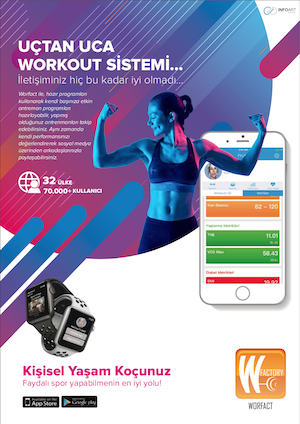
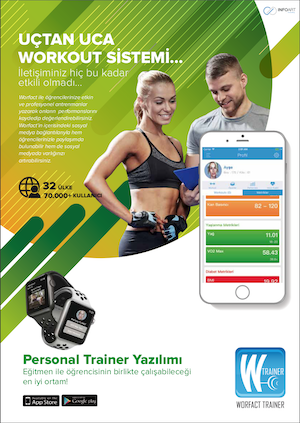
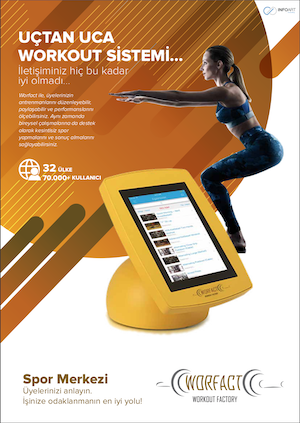
Worfact is a mobile application that aims to track performance and simultaneously collect the data while coaching people with muscle selector screen, pre-workouts and exercise library.
Using Help
Reach the Help Document from www.worfact.com/help
Converting the trial version to the full version of Worfact Application
When Worfact is downloaded for the first time, it can be used as a full version or free for 3 days. After 3 days, it can not be used except some general features. The purchase screen will appear when you want to use features that are not supported in the free version. When you select the option that is right for you on the Purchase screen, your purchasing process will begin. Once the purchase process is complete, Worfact will be available as a full version.
Ending Up Subscription
Membership can be ended at any time. To cancel a subscription;
Menu > Settings > Terms of Users
Follow the unsubscribe section in the Terms of Users document.
Multilanguage Support
Worfact will be in the language of the device when it is first installed. Using multi-language support, you can continue by selecting one of the supported languages.
What is Exercise
Worfact içerisindeki egzersizler profesyonel eğitmenler tarafından tanımlanmış ve videoları nizami olarak yaratılmıştır. Aynı zamanda Kas - Egzersiz bağlantıları da ACSM standartlarında ilişkilendirilmiştir. Kitaplıkta yer alan herbir egzersiz için;
The exercises in Worfact are defined by professional trainers and the videos are created in the order. At the same time, Muscle - Exercise relations are also associated with ACSM standards. For each exercise in the library;
- Name
- Explanation
- Video
- Muscle Relations
- Area Categorization
- Type Categorization
- Favorite status take places.
The search box in the exercise library allows easy and quick access to desired exercises.
Note: Exercise and training content is not fit for all users and only for informing purposes. Before starting an exercise program consider your fitness level and CONSULT YOUR DOCTOR. Worfact and its providers, are not responsible for any injury.
What is Workout?
A Workout comes from multiple exercises. Briefly, a workout consisting of several exercises is called Workout. The following information is required when creating a workout.
- Workout Name
- Start Date
- End Date
- Exercises to be done (Weight, Set, Repeat and Direction information are also entered for each exercise separately. There is some data as standard but it is better to enter your own values.)
- Workout Date Plan
- Resting time between exercises
Once this information is entered during the creation of the workout,
- Total Calories
- The duration of the workout to be done will be calculated and displayed on the screen.
Entering this information is important for performance evaluation. In this respect, planned / realized analyzes are prepared by the system.
A prepared workout can also be marked as a favorite for further use.
Note: Exercise and training content is not fit for all users and only for informing purposes. Before starting an exercise program consider your fitness level and CONSULT YOUR DOCTOR. Worfact and its providers, are not responsible for any injury.
What are Measurements?
Body measurements are categorized in 4 main groups. These;
- Body Circumference Measurements, includes circumference measurements of certain areas of your body. BMI, waist / hip ratio calculations are obtained at this number.
- VO2max, measures your maximum oxygen usage capacity. It is calculated by entering Pulse, time and distance values.
- 1RM, One-repetition maximum (one rep maximum or 1RM) in weight training is the maximum amount of force that can be generated in one maximal contraction.One repetition maximum can be used for determining an individual's maximum strength and is the method for determining the winner in events such as powerlifting and weightlifting competitions. One repetition maximum can also be used as an upper limit, in order to determine the desired "load" for an exercise.
- Vital Diagnosis blood pressure, resting pulse and skin thickness are entered. In this way; it calculates metrics like Body fat ratio.
Note: Measurements are a tool to inform you about your physical condition by the help of the data you provide and references used in the application. The information you will be given accordingly to your measurements are in no way medical diagnosis, treatment or advice. This application cannot be used as a diagnosis or treatment tool for any and all health problems you have or suspect having. In case of any health problems CONSULT YOUR DOCTOR.
What is Performance?
Performance Metrics are prepared in 4 main concepts; The categorization was made by considering which metrics should be followed for these 4 concepts.
Weight Metrics (Metrics to follow for weight control)
Weight
BMI
Fat%
Heart Metrics (Metrics to follow for heart control)
Waist/Hip Ratio
VO2max
Blood Pressure
Healthy Aging Metrics (Metrics to follow for Healthy Aging)
Fat &
VO2max
Diabetes Metrics (Metrics to follow to control diabetes)
BMI
Waist
At the same time, the required values are calculated in ACSM standards. The relationship between current and predicted values can be easily analyzed.
Your goals are estimated based on ACSM documents based on profile information you enter, such as your gender, age and activity level.
What is Muscle Selector?
Muscle Selector is a system that visually determines muscle - exercise relationship. The body is divided into 80 regions, front and rear view. For each muscular region you touch consists of as follows;;
4 angled images,
Medical Explanation,
Exercises to improve the muscle
Primary exercises
Secondary exercises
Stretching exercises
What is Dashboard?
Dashboard is a graphical interface that includes summaries of existing workouts, measurements, and analyzes. From this interface, you can learn about the overall performance at a glance:
In this section, percentage values of Planned / Relalized workouts are shown in pie chart and the current measurement value / predicted measurement value is prepared by the system.
In ACSM standards, Predicted Values are calculated by the system, using Age, Height, Weight, Gender and measurement values.
To edit a profile, press the settings button in the top right corner of the profile screen.
Profile information, password and picture contents can be updated via this screen.
Add a workout
Menü > Profilim > Workout > “+” butonuna basın.
Daha sonra ekran üzerinden workout oluşturmak için gerekli bilgileri girin. Sırasıyla ;
Menu > My Profile > Workout > press “+” button.
Then enter the necessary information to create a workout on the screen. Respectively ;
- Workout Name
- Start Date
- End Date
- Exercises to be done (Weight, Set, Repeat and Direction information are also entered for each exercise separately. There is some data as standard but it is better to enter your own values.)
- Workout Date Plan
- Resting time between exercises
Add a favorite workout
Menu > My Profile > Workout > press “+” button.
Then click the "Select my favorite workout" button at the bottom of the screen. When you click on your favorite workouts you have already created will be listed, choose the appropriate one. To do this, you must have a workout that was previously created and marked as a favorite.
The selected workout will be redirected to the add new workout page with the current information. Check the start date and end date and schedule the workout and press the save button.
Mark workout as a favorite
Menu > My Profile > Workout
Select the workout you want to favorite from the list.
Press the star button in the top right corner of the workout screen you have selected. Appear this workout in your favorite workouts list.
Delete a workout
Menu > My Profile > Workout
Delete the workout you want to delete by pulling it to the left.
Edit a workout
A saved workout can not be edited at all because it provides the basis for performance reports. You need to recreate a workout you need to edit.
Workout List
Menu > My Profile > Workout
Your workouts will be listed in a table.
Complete workout
The workouts in the planned dates must be completed as long as they are done. Planned / Realised workout analyses and performance metrics are prepared on this page. To this end;
Menu > Workout > Select Workout > Press “Workout Complete” button > Select workout from workout list > Check Values > Complete *
*If all the exercises of the related workout are made with their normal values (Set, Repeat, Weight, Orientation), the Workout is completed by pressing the "Complete All Exercises" button.
*If some exercises related to the workout are made and some are left without it is, the exercises are selected and their values are checked and the "Complete This Exercise" button is pressed. After these operations are completed for the exercises, “End up Workout and Exit" button is pressed to perform Workout Completion.
*After this process all performance reports will be updated.
*Completed workouts will no longer appear on the list.
Heart Rate Ranges
Menu > My Profile > Workout > Heart Rate Ranges
The system will calculate for you the pulse intervals that should be in the order of workout in 3 different ways as below.
Performance Range
Mass Workout Range
Calorie Burning Range
Share workout
Workouts can be shared across social media or to the extent that the platform you use, such as email, allows.
Menu > My Profile > Workout > Select Workout > Share press button.
Realised workouts will be listed on the corresponding workout. Select the Workout you want to share and press the Share button.
Body measurements are categorised in 4 main groups. These;
Body Circumference Measurements, includes circumference measurements of certain areas of your body. BMI, waist / hip ratio calculations are obtained at this number.
VO2max, measures your maximum oxygen usage capacity. It is calculated by entering Pulse, time and distance values.
1RM, One-repetition maximum (one rep maximum or 1RM) in weight training is the maximum amount of force that can be generated in one maximal contraction.One repetition maximum can be used for determining an individual's maximum strength and is the method for determining the winner in events such as powerlifting and weightlifting competitions. One repetition maximum can also be used as an upper limit, in order to determine the desired "load" for an exercise.
Vital Diagnosis blood pressure, resting pulse and skin thickness are entered. In this way; it calculates metrics like Body fat ratio.
Note: Measurements are a tool to inform you about your physical condition by the help of the data you provide and references used in the application. The information you will be given accordingly to your measurements are in no way medical diagnosis, treatment or advice. This application cannot be used as a diagnosis or treatment tool for any and all health problems you have or suspect having. In case of any health problems CONSULT YOUR DOCTOR.
Add a measurement
Menu > My Profile > Measurements > press “+” button.
Select the type of measurement you want to enter in the incoming table. Then enter the measured values. 4 categories must be saved separately and finally the "Save" button at the bottom of the screen.
When measuring, it is not obligatory to perform the measurements in 4 categories all at once. Performance and Dashboard will take the last measurement of each category as valid. For example, one day only body circumference measurements can be entered on other days of vital diagnosis.
For VO2 max measurements the value will be calculated by the system. To see the calculated result, go back to a screen and come back.
The area of Skinfold Measurements are different for gender. The system will guide you based on your gender. Enter the skin thicknesses of the areas you see on the screen. Use caliper device to measure skin thicknesses. You can use the Worfact Skinfold Measurement document to get help in this regard.
Delete a measurement
Menu > My Profile > Measurements
Delete the workout you want to delete by pulling it to the left.
Edit a measurement
A recorded measurement can not be edited at all because it is the basis for performance reports. You must recreate a measurement that you need to edit.
Measurement List
Menu > My Profile > Measurements
Measurements willş be listed as table.
Analyses of measurement
The values of all measurements made are recorded by the system. To see these analyses;
Menu > My Profile > Measurement > Analyses > Select Measurement Type > Select Measurement
Trainer
A user with a trainer account can administer all students connected to it.
For their students, trainers;
- Can prepare workouts;
Menu > My Students > Select Student > Workout > press “+” button
- Can enter measurements;
Menu > My Students > Select Student > Measurements > press “+” button
- Can check performance analysis;
Menu > My Students > Select Students
However, trainers can’t do these actions for their students;
Complete workouts,
Delete current measurements,
In order to list your students;
Menu > My Students
To remove students;
Menu > My Students > Swipe the name of the student you want to remove to the left > Delete
Once a trainer deletes a student, neither can view each other.
Student
In order to choose a trainer;
Menu > My Trainer > Add Trainer > Select Trainer
Trainers and Students can send messages to each other. At the same time, the Trainer can send a mass message to their students. Students cannot send messages to each other.
To send a message;
Menu > My Students (My Trainer) > Send Message
To send mass message;
Menu > My Students > “Send message to all students”
Ready Workouts are workouts prepared by expert trainers. Information about the ready workout can be obtained by pressing the "i" button. Each pre-workout consist of;
- Name
- Purpose
- Explanation
- Name of Exercises
- Duration
- Calorie
To use a pre-workout
Menu > Pre-workouts > Select Workout > Complete the fields > Save
Once you have entered the required information, it will be added to your account as a new Workout.
Worfact includes about 650 well-defined exercises. Each exercise consists of;
- Video
- Explanation ( Writing and Sound )
- Muscle relation ( Primary and Secondary )
Exercises are categorised in regions (Leg, Arm, Chest, Hip, Abdomen, Shoulder, Back) and type (Cardio, Bodyweigth, Calisthenic, Felxibility, Isometric, Isotonic, Strength).
To access exercise library
Menu > Exercises
Make exercise favourite
Menu > Exercises
Select the exercise you want to favourite from the list.
Press the star button in the upper right corner of the exercise screen you have selected. This exercise will appear on favourites list.
If you have a trainer account, you can add your own exercises to the exercise library. These exercises, which are added by you, will only be available to you and your students. They can not be used by other worfact users.
Add a custom exercise
Menu > Create a new exercise
- Enter Name of Exercise
- Select Area from list
- Select Type from list
- Add video file
- Add Explanation of Exercise
- Select Muscle
- Save
This exercise will now be on my list of exercises.
Delete a custom exercise
Custom exercises can be deleted by the creator. If you are the creator of the custom exercise you want to delete, to delete this exercise;
Menu > My exercises > Swipe the name of the exercise you want to remove to the left
Muscle Selector is a system that visually determines muscle - exercise relationship. The body is divided into 80 regions, front and rear view. For each muscular region you touch consists of as follows;
- 4 angled images,
- Medical Explanation,
- Exercises to improve the muscle
- Primary exercises
- Secondary exercises
- Stretching exercises
To use Muscle Selector
Menu > Muscles > Press the Muscle to affect
Muscle List
Menu > Muscles > Muscle List
The Settings contains the following fields;
- Language
- Metrics Type
- Exercise videos
- Contact Us
- Terms of Use
- Rate This App
- Subscription
- Privacy Policy
Settings
Menu > Settings
Set the language
Menu > Settings > Select Language
Set metric type
Menu > Settings > Metrics Type
Clear the cache
Menu > Settings > Exercise Videos
Send a feedback
Menu > Settings > Contact US > Send mail
Terms Of Use
Menu > Settings > Terms of >Use > Read
Rate the App
Menu > Settings > Rate This App
Privacy Policy
Menu > Settings > Privacy Policy > Read


Infoart Consulting ® 2016
2016 yılında Ar-Ge firması olarak kurulan Infoart Consulting kuruluşundan bu zamana kadar, sağlık sektöründen spora, inşaat sektöründen madencilik sektörüne ve kobilerden holdinglere kadar çeşitli hizmetler sunmakta ve yaklaşık olarak 80.000 nin üzerinde kullanıcıya hizmet vermektedir. Aynı zamanda Infoart, faaliyetlerini Apple firmasının FileMaker Business Alliance üyesi olarak sürdürmektedir.
Merkez : Emek 8. cadde 30. sokak No:33 ÇANKAYA / ANKARA
Şube : Cyberpark Vakıf Binası
Üniversiteler Mahallesi 1605. Cad. No: 3/1 Kapı No: B01 Bilkent
06800 ÇANKAYA / ANKARA
90 312 9114821 - info@infoart.com.tr


Worfact Uygulamasını indirmek için;